

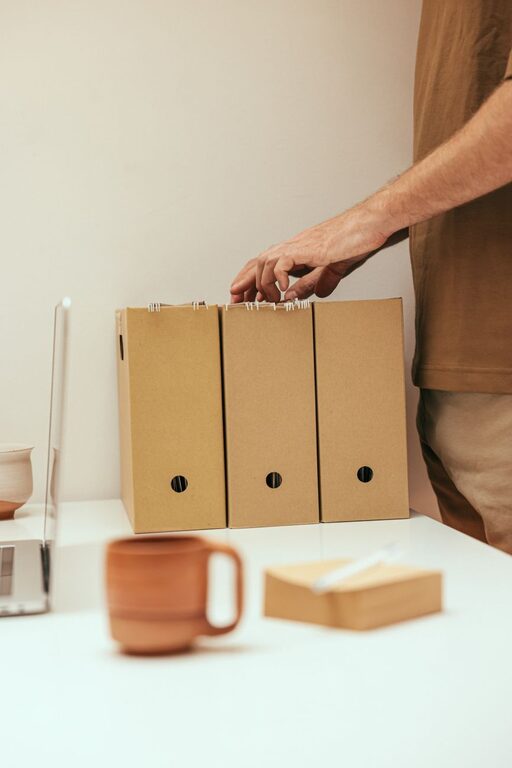
Keeping your digital files organized can make a big difference in your productivity and peace of mind. Whether you use your computer for work, school, or personal projects, having a clear system for managing files helps you find what you need quickly and prevents unnecessary clutter. In this post, we’ll explore practical tips for organizing files on your computer, suitable for both beginners and seasoned users.
Why Organize Your Files?
Before diving into tips, it’s good to understand why file organization matters:
– Saves Time: A well-organized system allows you to locate files instantly.
– Reduces Stress: Cluttered desktops and folders can be overwhelming.
– Improves Backup: It’s easier to back up important files when they’re sorted.
– Enhances Efficiency: Streamlines workflow, especially for larger projects.
Now, let’s look at some actionable strategies.
1. Create a Logical Folder Structure
Use Broad Categories
Start by grouping files into broad categories such as:
– Work
– Personal
– Projects
– Photos
– Receipts
Break Down Into Subfolders
Within each category, create subfolders to further organize content. For example, inside “Work” you might have:
– Reports
– Presentations
– Meeting Notes
This hierarchy helps you quickly narrow down where to save or find files.
2. Name Files Clearly and Consistently
File names should be descriptive enough to understand the content without opening the file.
Tips for Naming Files:
– Use dates in the format YYYY-MM-DD for easy sorting (e.g., 2024-06-10_ProjectProposal.docx).
– Avoid vague names like “Document1” or “New Folder.”
– Use underscores or hyphens instead of spaces to avoid issues across different systems.
– Keep names concise but informative.
3. Use Tags and Metadata (If Supported)
Some operating systems and software allow you to add tags or metadata to files. Tags are keywords that make searching easier.
– Tag files with relevant keywords.
– Use consistent tags across similar files.
– This method works well for photos, documents, or multimedia.
4. Regularly Clean and Archive
Over time, it’s easy to accumulate outdated or duplicate files.
Schedule Periodic Reviews
– Every month or quarter, review files and delete what’s no longer needed.
– Move important but rarely accessed files to an archive folder or external storage.
Use Duplicate File Finder Tools
These tools help identify and remove duplicate files to free up space.
5. Utilize Cloud Storage and Backup Solutions
Cloud Storage Benefits
– Access files from multiple devices.
– Share files easily.
– Adds a layer of backup.
Popular options include Google Drive, Dropbox, and OneDrive.
Backup Regularly
– Use external hard drives or backup software.
– Schedule automated backups to ensure your data is safe.
6. Organize Your Desktop
Your desktop should not become a clutter zone.
– Keep only frequently used shortcuts.
– Store most files in proper folders.
– Use desktop cleanup tools or settings to auto-hide icons when not in use.
7. Use File Management Software
If you handle many files, consider software designed for file management, which offers:
– Advanced searching
– Batch renaming
– Sorting by various criteria
Examples include Directory Opus (Windows) or Finder enhancements (Mac).
8. Set Up a Download Folder Routine
Files downloaded from the internet tend to pile up quickly.
– Regularly sort files from the Downloads folder into your organized structure.
– Delete unnecessary files immediately.
– Consider setting your browser to ask for a download location each time.
9. Protect Important Files with Passwords or Encryption
For sensitive or personal documents:
– Use built-in encryption tools or third-party software.
– Avoid storing passwords in plain text files.
Final Thoughts
Effective file organization is a habit that can greatly improve your digital life. Start small with a simple folder system, and gradually refine it using these tips. With some regular effort, you’ll enjoy a clutter-free computer and spend less time searching for files.
Taking control of your digital space today makes tomorrow’s work smoother and more enjoyable!